App Store Connect Guide
How to Localize App Store Listing Metadata
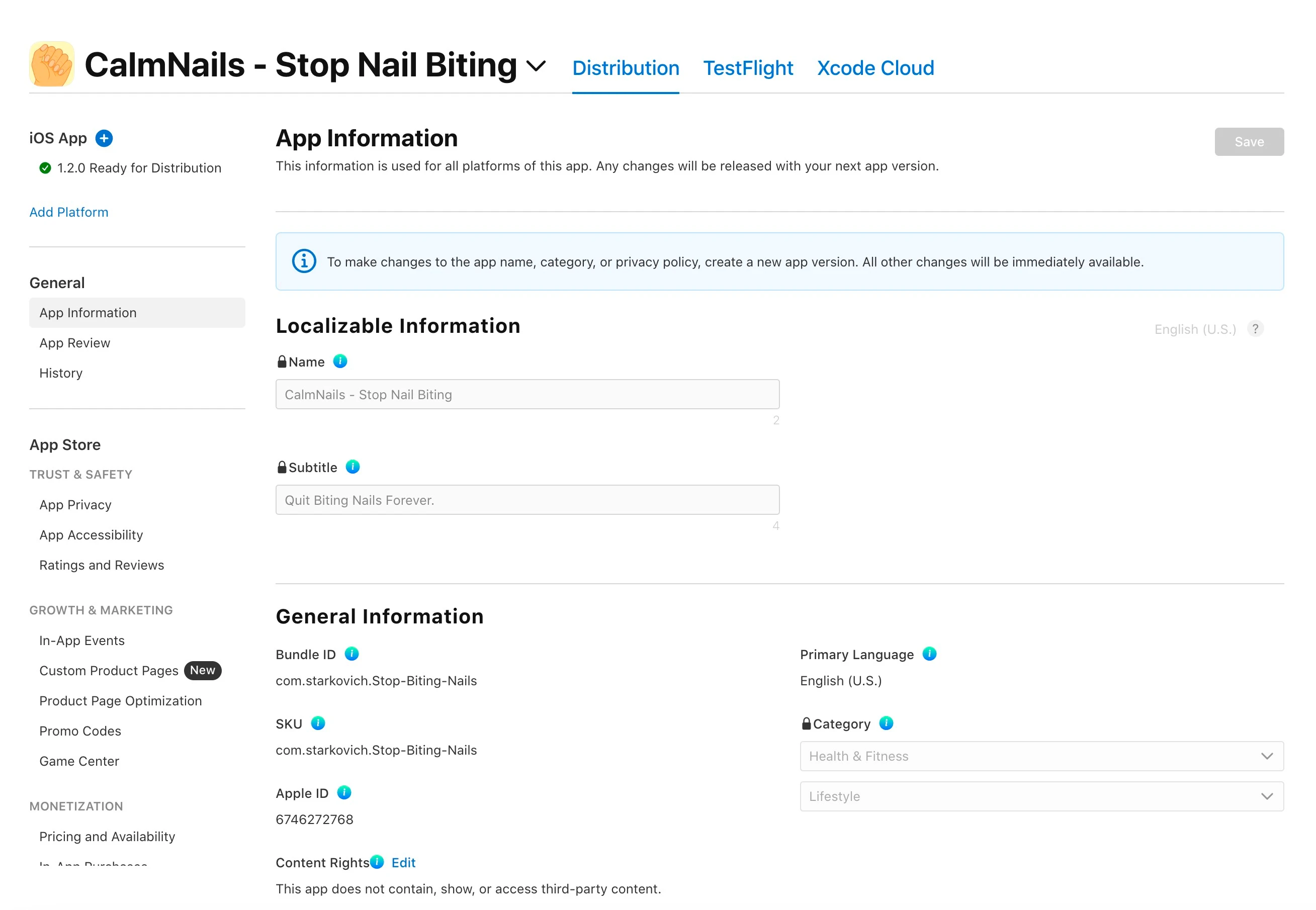
App Store listing localization is separate from localizing your app binary. This guide focuses on the listing fields developers manage in App Store Connect: name, subtitle, keywords, description, promotional text, and What's New.
1. Know what App Store listing metadata includes
Apple separates App Store metadata localization from app binary localization. The listing metadata users see on the App Store can include localized app names, subtitles, keywords, descriptions, promotional text, and update notes.
That distinction matters because the App Store listing workflow lives in App Store Connect. If your app UI is translated but your listing metadata is still only in your primary language, users in other languages may still see the fallback listing copy.
2. Start with strong source metadata
Auto-localization works best when the source listing is clear. Before adding languages, tighten your primary locale fields:
- Name: short, distinctive, and within App Store limits.
- Subtitle: a concise summary of the app's value.
- Keywords: focused phrases that match how users search.
- Description: useful first sentence, clear benefits, and no keyword stuffing.
- Promotional Text and What's New: current, specific, and easy to review.
3. Use AscBuddy to find missing locales
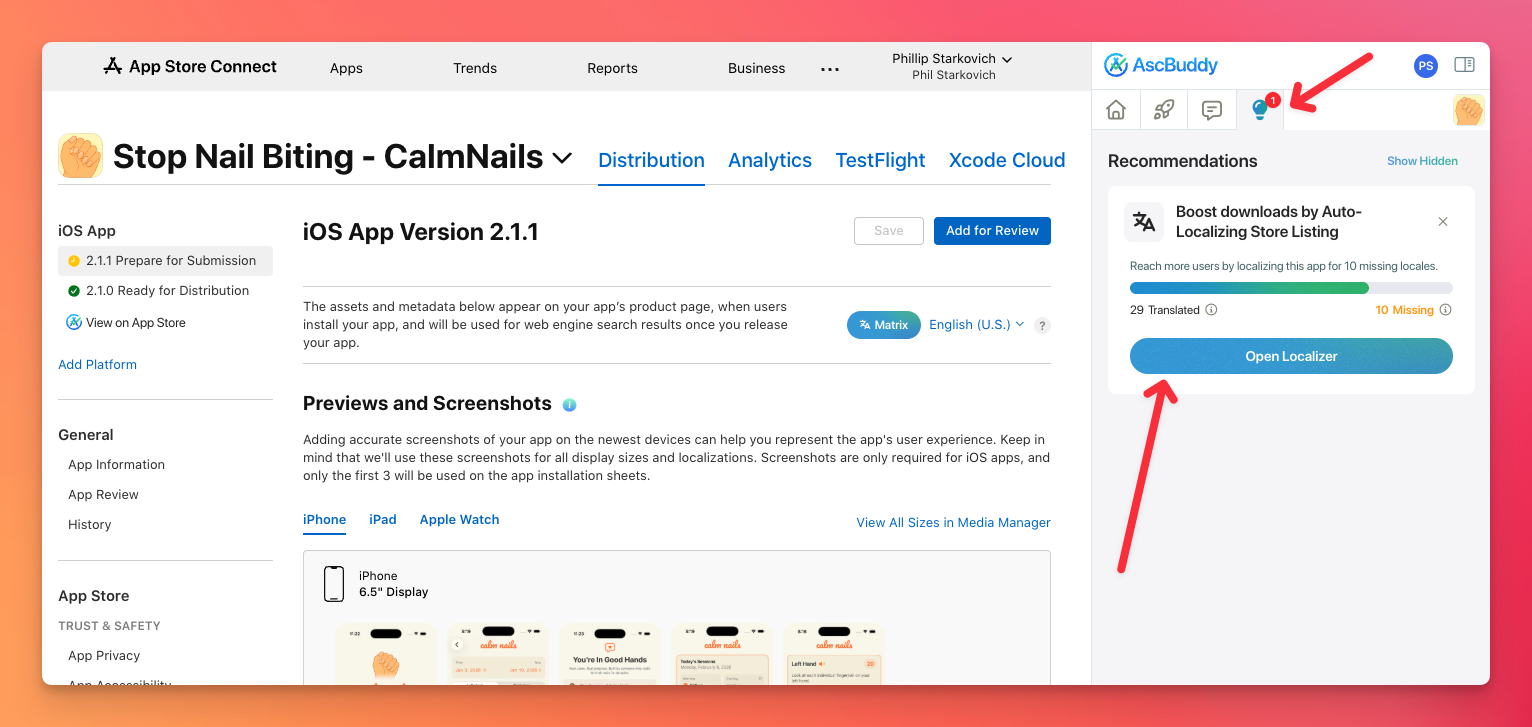
In App Store Connect, open the AscBuddy side panel and choose the Recommendations tab. AscBuddy can show when your app has missing listing localizations and provide an Open Localizer action for that app.
4. Select the languages you actually want to fill
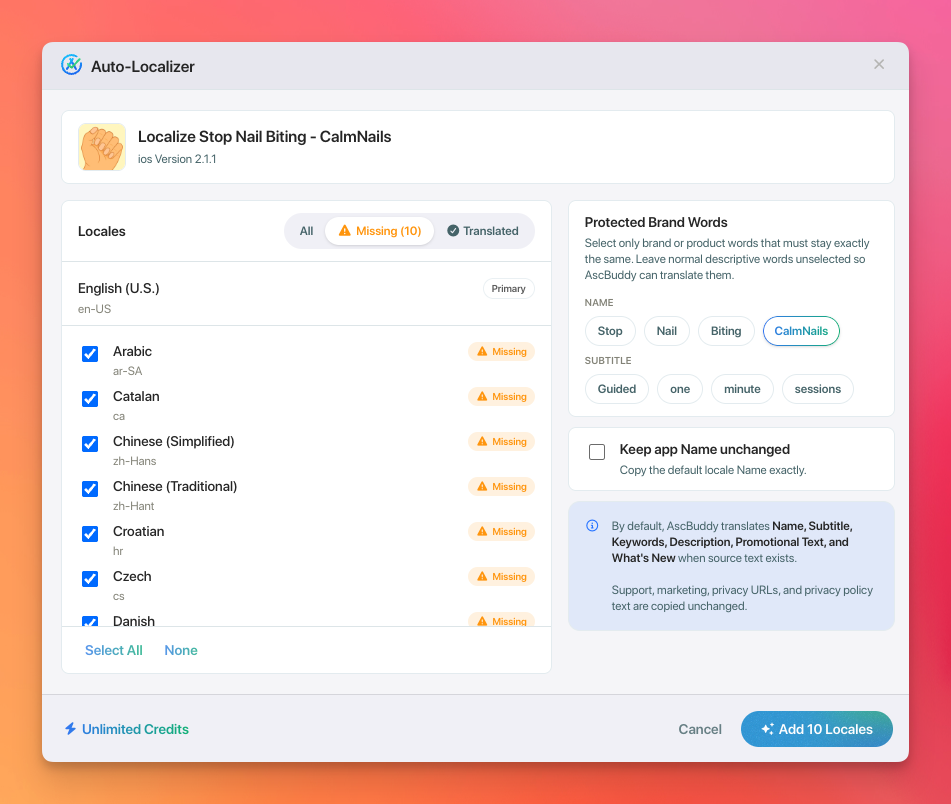
Do not localize everything just because a list is available. Prioritize languages based on your audience, support capacity, app content, and launch plan.
Auto-Localizer is designed around selected locales, so you can choose the missing listing languages that make sense for this release.
5. Protect app and brand terms
Product names, app names, branded features, and trademarked terms may need to stay exactly the same. Auto-Localizer lets you protect selected terms before drafting localized listing fields.
6. Draft localized listing fields, then review them
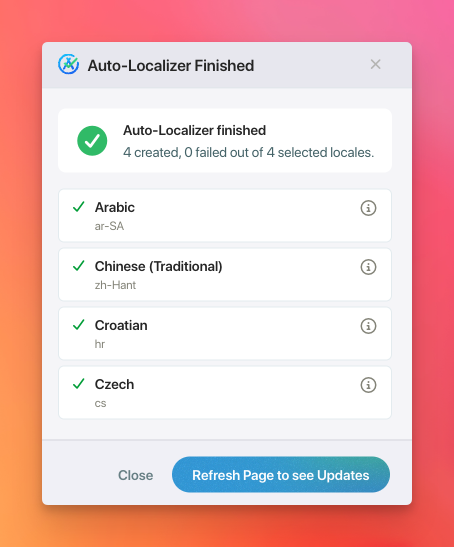
AscBuddy can draft localized listing metadata for review. Treat those drafts as a starting point, especially for keywords, sensitive claims, regulated categories, or major launches.
For important markets, use a native speaker, reviewer, or localization partner to check tone, keyword relevance, and cultural fit.
7. Check App Store Connect state before relying on edits
Some listing fields depend on the current App Store Connect state. If a version is not editable, version-specific metadata changes may need to wait until you create or select an editable version.
This is one reason a guided workflow matters: the best localization copy still needs a place where it can be saved.
8. Keep screenshots and app previews on your review list
Auto-Localizer focuses on listing text metadata. Screenshots and app previews are separate product page assets, and they may also need localization depending on your app and market priorities.
FAQ
Is this the same as localizing my app in Xcode?
No. This guide is about the App Store listing metadata managed in App Store Connect.
Should I directly translate keywords?
Use translated keyword drafts as a starting point. Search behavior differs by language and market, so review important locales before submission.
Does this guarantee better App Store performance?
No. Localized metadata can help you present more relevant listing copy, but installs, rankings, revenue, and conversion depend on many factors.
Try Auto-Localizer in AscBuddy
AscBuddy is a Chrome extension built into App Store Connect. Install it free, open your app listing, and open the Recommendations tab to see whether Auto-Localizer can help fill missing listing locales.